
How to Use the Self-Sizing Scan Measurement Workflow
This guide walks you through the scan measurement process step-by-step, from selecting a scan to completing your order form. The goal is to help you confidently verify or adjust measurements before placing an order.
See this video for a simple walk-through of this new process. Read below to see more details.
1. Start a new order in FabOne, select your scan, and click Next.
This will open the scan view, where you’ll begin the measurement verification process.
2. Place Measurement Markers (or Skip)
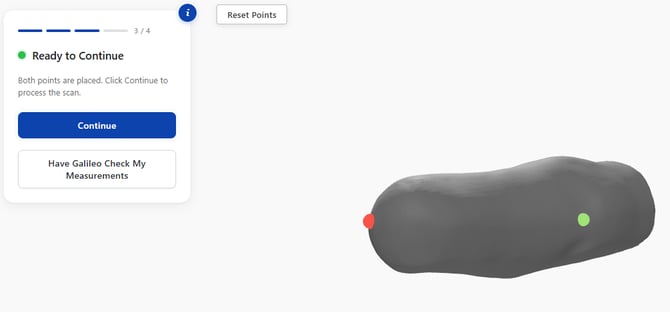
In the scan view, you will be prompted to place key anatomical markers:
- MPT (BK) / Perineum (AK)
- Distal end (as shown in the interface)
Or Skip This Step
If you do not want to place markers yourself, you can click:
“Have Galileo check my measurements.”
That will skip self-sizing and take you directly to the order form.
If You Make a Mistake:
If a marker is placed incorrectly, simply click: “Reset Points”
This will clear your selections so you can start over.
3. Review Scan Measurements
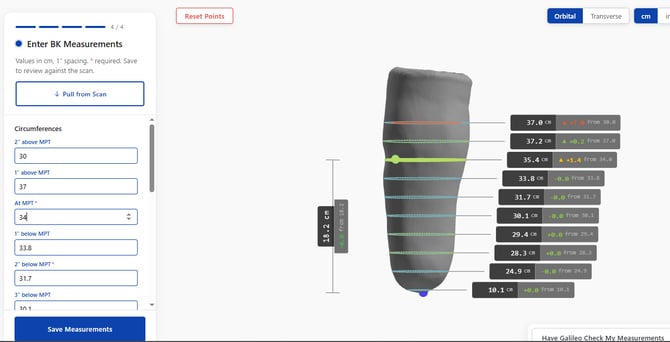
After clicking “Continue,” the system will display your scan-based measurements.
You'll enter your hand measurements on the left side. The same measurements required on the order form are required here.
Or you can click "Pull From Scan" to automatically fill the measurements section with your scan measurements.- The system will automatically compare the written measurements to the scan
- You will see how far your inputs deviate from the scan values
4. Save and Choose Your Measurement Source
Once you’ve reviewed everything, click:
“Save Measurements.”
You will then be given a choice:
- Go with scan → Uses scan-derived measurements for the order
- Go with measurements → Uses your manually entered values
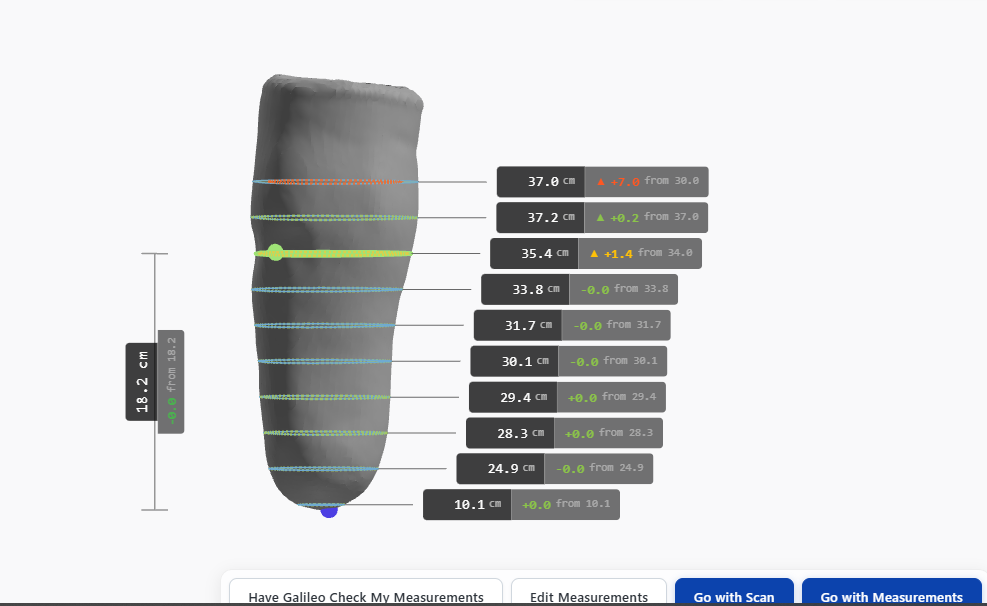
This selection will take you directly to the order form. The order form will prefill your hand-values, and pre-fill your "go with scan or measurements" option.
Important Notes
- If all measurements are labeled “green,” this means your inputs already match the scan. In this case, you’ll simply be prompted to continue since no validation adjustments are needed.
- Some required measurements still must be completed to match the end socket form on the measurement input screen, even if scan data is used.