Galileo Scanner is our all-new, user-friendly scanning app compatible with iPhone 10+ with Face ID or with an iPad & Structure sensor. We will be discontinuing our original scanning app, Protosthetics Scan & 3D Print, during 2026. Please transition to using this new app before then to avoid losing any future scans.
Note: This app is only compatible with devices on iOS version 17.2 or later.
Download and Log In
-
Navigate to your App Store here and click "Get" to download the app.

- Log in with your existing Galileo Credentials. Email us at success@protosthetics.com if you need to set up an account.
Taking a Scan
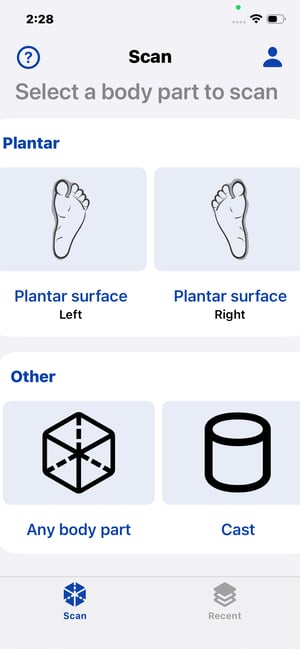
- Select a body part to scan.
- If you are scanning a leg, upper extremity, or chest, click the option that says "Any body part."
- If you are scanning a foot, choose the left or right plantar surface options.
- If you are scanning the inside of a cast, click the "Cast" option.
- Your camera will open with instructions. Click "OK."

- Click "Scan" to begin scanning.

- Click "Done" to view your scan.

- Click "Save" if finished, or "Redo" to try again.

- Give it a name, and click "Upload to Server" to upload it to FabOne.

Find Your Scan
-
Click "Recent" in the bottom right to view your previous scans.

Scanning a Foot
-
Click the Plantar Surface to begin your scan. Instructions will appear on the screen. Then follow the initial instructions above.

Turning on Scan with Color
-
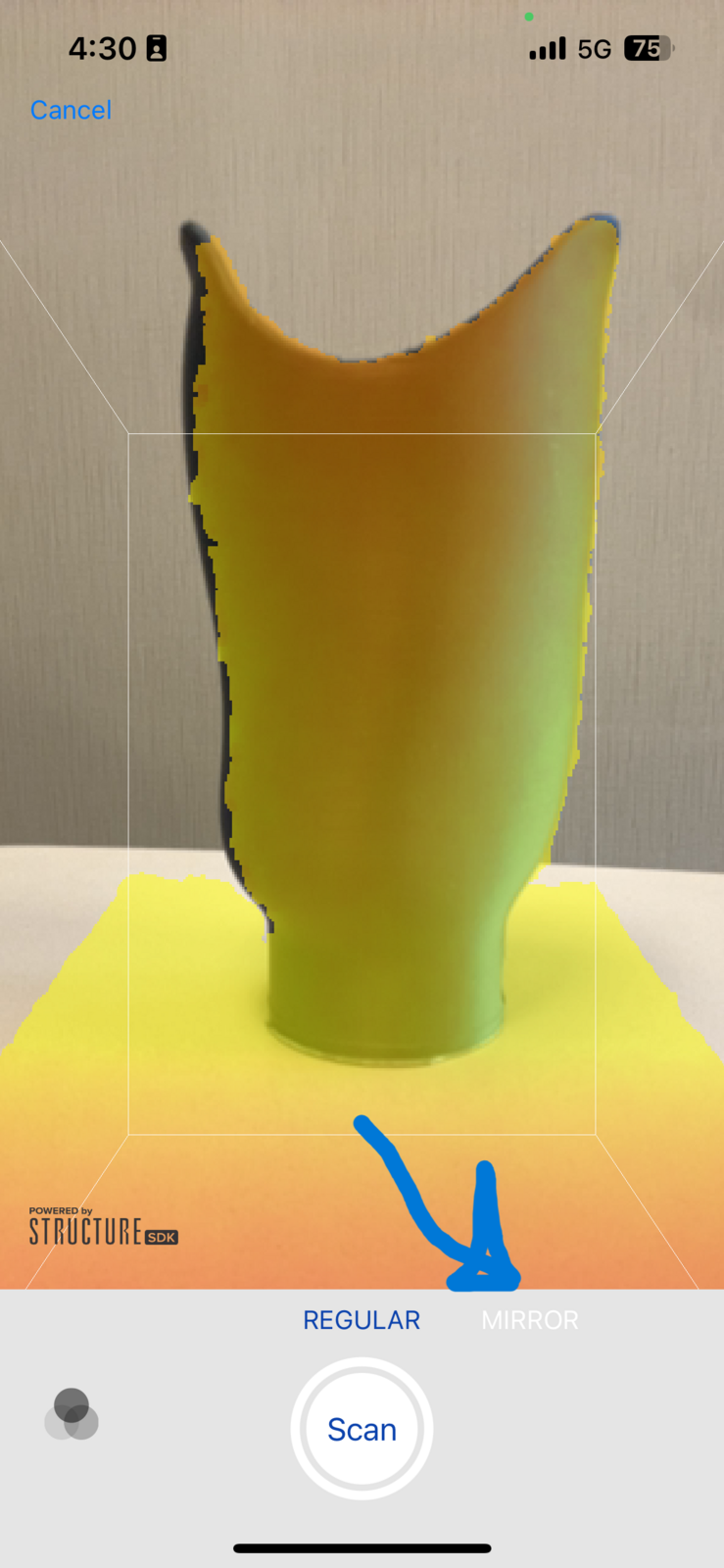
Before clicking "Scan," tap the 3 circles in the bottom left. Please enable this if you want landmark drawings to appear on the scan.
Turn on Mirror Mode
Note: Use Mirror Mode if using a mirror attachment
- Before clicking "Scan," check the "Mirror" option.