
Prerequisites
- Access Level: This feature is exclusively available to Super Admins.
- Location Match: Orders can only be migrated between two users who belong to the same clinic location.
-
Navigate to the Admin Control panel and select the User Admin section
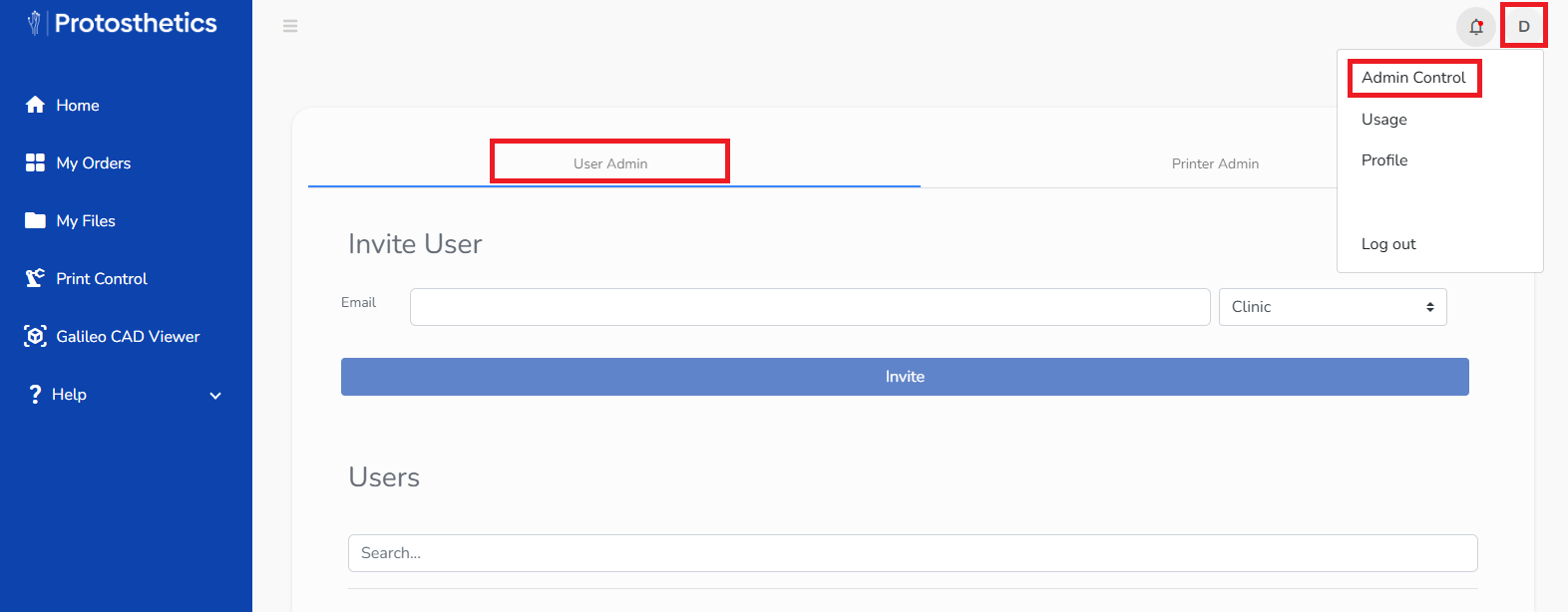
- Locate the user profile you wish to migrate orders from
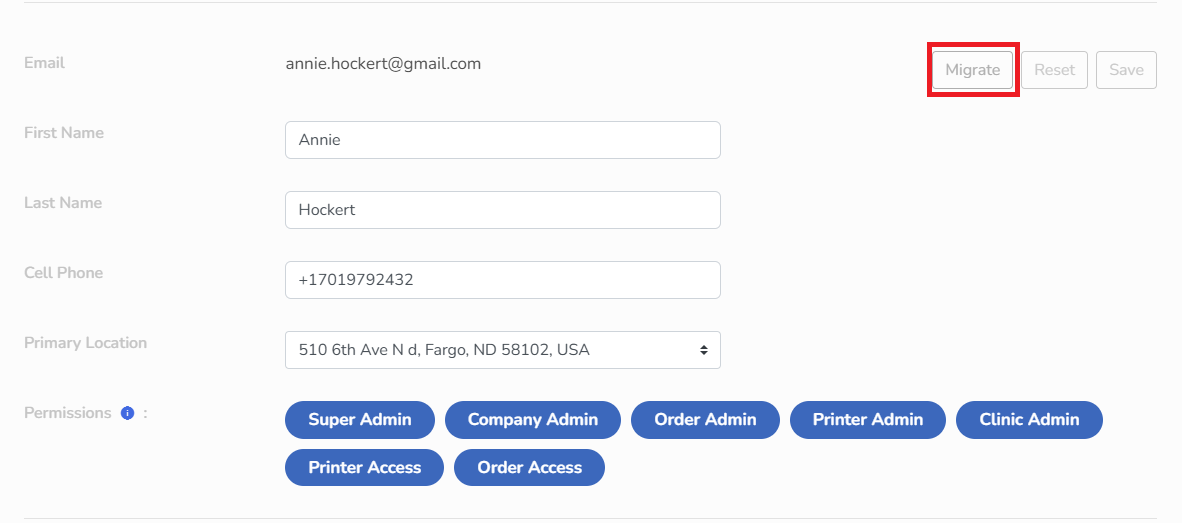
- Click the Migrate button located in the top right corner of the user
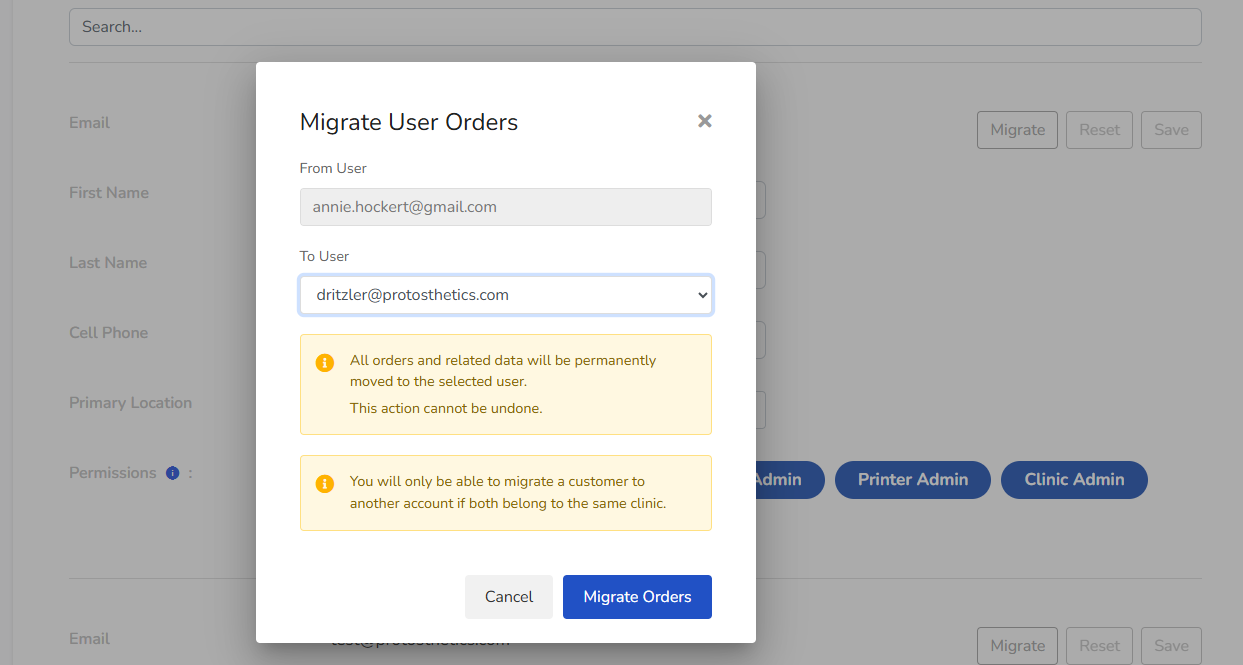
- A popup titled Migrate User Orders will appear.
- The User field will be pre filled with the current user's email.
- Under To User, click the dropdown menu and select the email of the existing user who should receive the orders
- Review the Warning Messages
- This is Permanent. All Orders and related data will be moved permanently. THIS CANNOT BE UNDONE
- Clinic Verification: Ensure both users are assigned to the same clinic, or the migration will have an error
- Click Migrate Orders to complete the process.
Post Migration: Deleting the Old Account
Once the migration is successful and you have verified that the orders are visible under the new user's account, you may wish to clean up your user list.
To Remove the Original User:
- Use the Chat Feature to let our Support Team know which users need to be deleted.
- We will reach out over Email to confirm this list is correct before deleting the accounts. THIS CANNOT BE UNDONE
Tip: We recommend performing the migration before deleting an account to ensure no data is lost during the transition