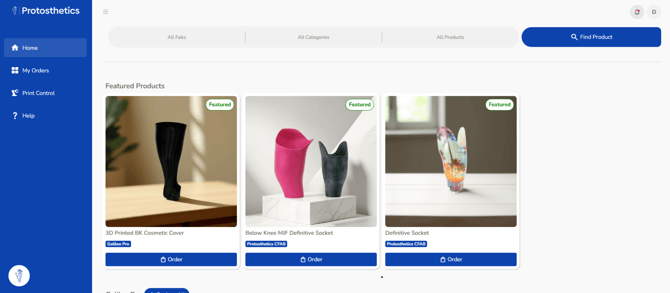
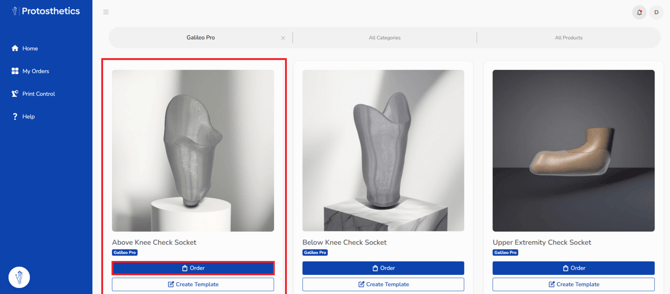
2. Scroll down and find the product you'd like to order, then select "Order" underneath the image. I've used the AK check socket as an example"
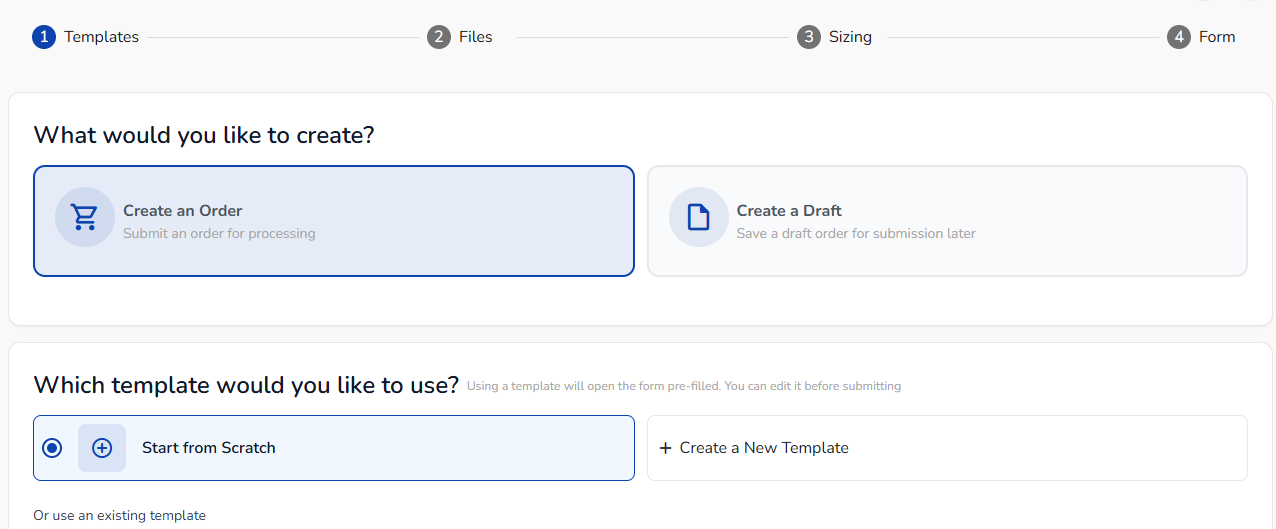
3. Choose to create an order or create a draft. Also choose whether to start from scratch or create a template.
- An order will submit directly to us. A draft will save internally for you to finish later
- A scratch order will be blank. Or, you can create a template to prefill sections of the order form for future use.
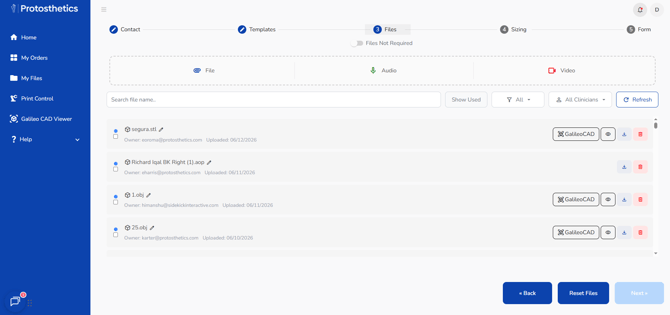
4. Choose a scan and click "Next."
-
Any scans you've uploaded from the Galileo Scanner App will already appear.
-
Click the files icon to upload a scan from a different scanning app.
-
Click "Scan Not Required" at the top if you are submitting an order that does not need a scan.
- You can input a Audio or Video recording if you need to communicate more directly about your order's needs
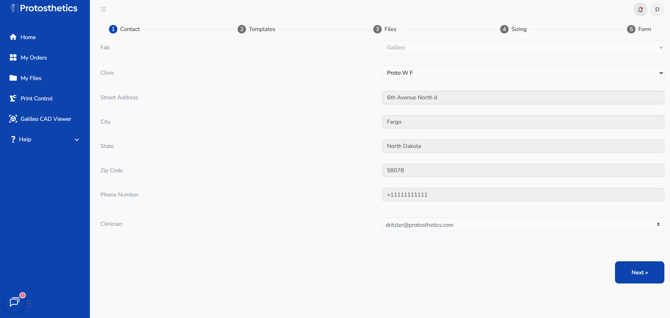
5. Verify your clinic's address, and then click "Next."
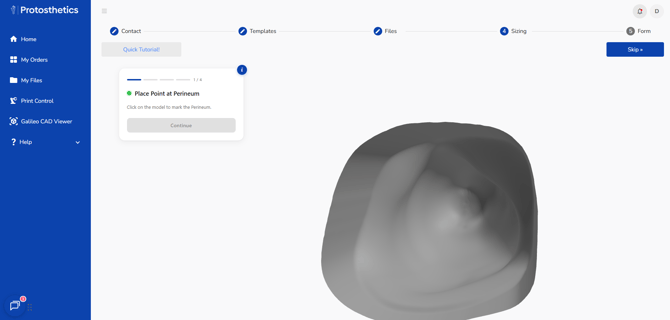
6. Feel free to use our measurement validation platform on your stl or obj file. If it's not loading, click Skip and let us know in the additional information on the order form.
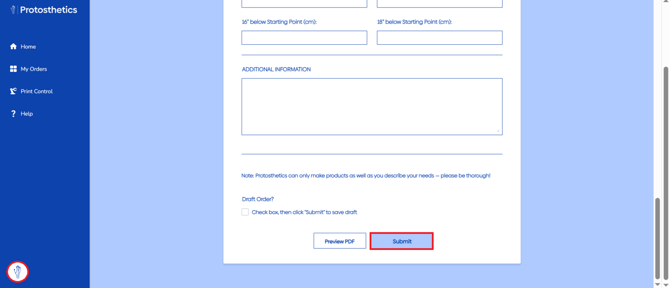
7. Fill out the order form as seen, and let us know using the Protosthetics Chat Icon on the bottom left corner if you have any questions.