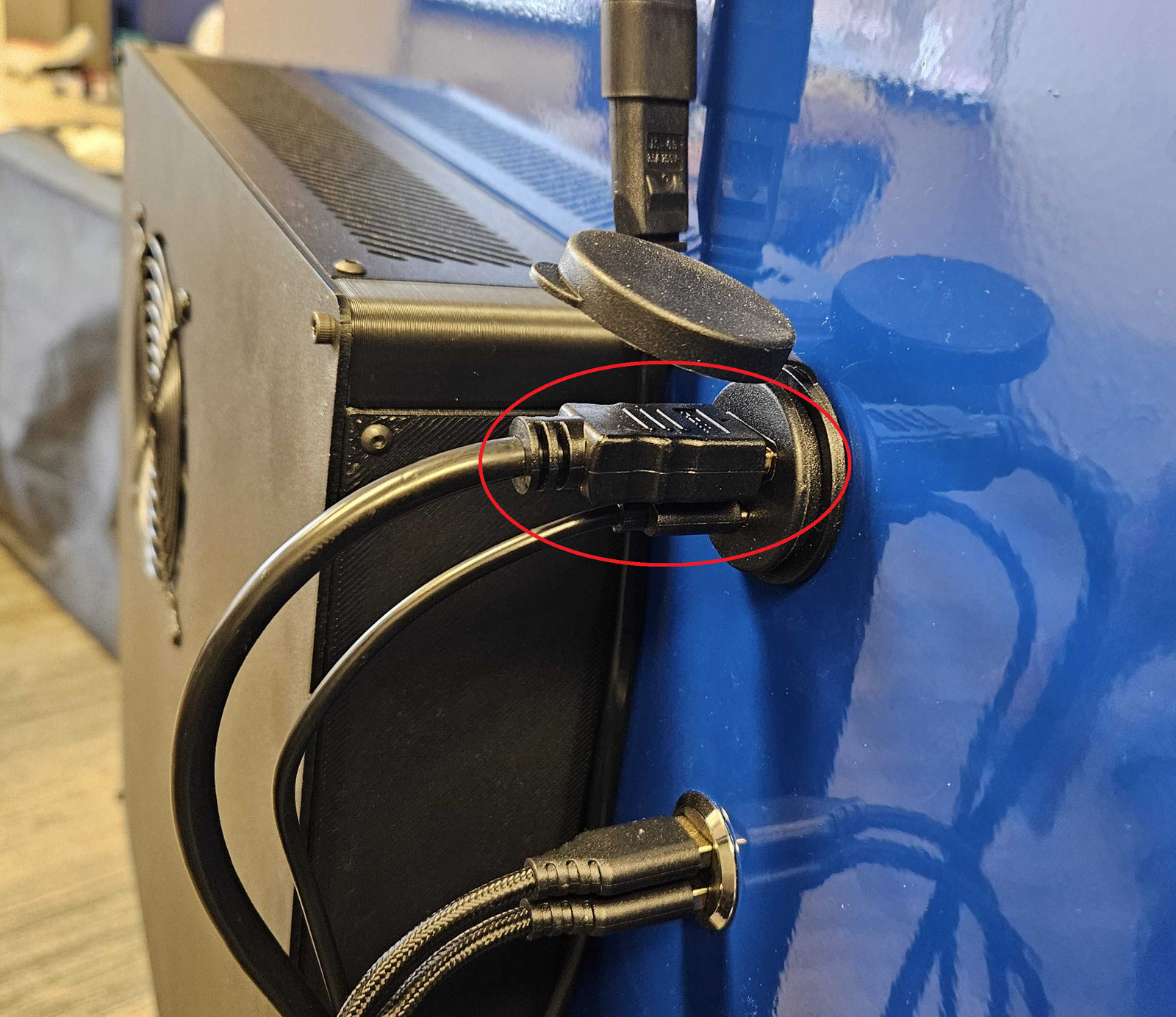
Tools needed:
- 4mm Hex Key
Troubleshooting Steps
Step 1: Quick Restart
1. Unplug the Power to the Back of the Kiosk.
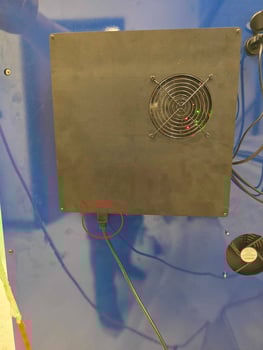
2. On the Back of the Kiosk, unplug the HDMI and USB-C Cable. (See the Picture below) Wait 30 seconds, then plug the HDMI and USB-C cable back in.
3. Plug the Power Back in. If the problem persists, proceed to Step 2.
Step 2: Check Connections
1. Unplug the Power to the Back of the Kiosk.
2. On the Back of the LCD Screen (See the picture below) Remove the 2 4mm Hex Bolts keeping the LCD Connected to the Hinge.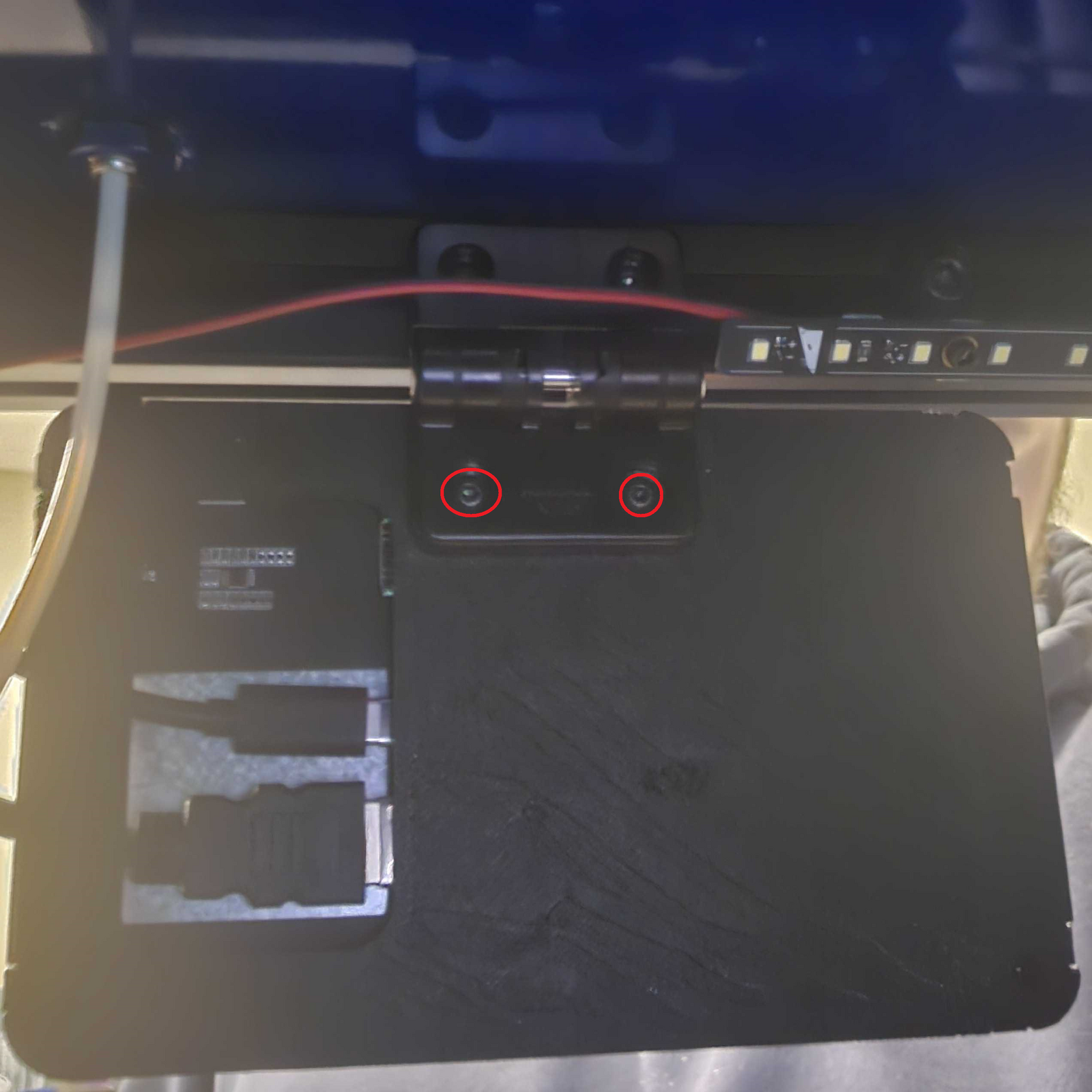
Note: Do not remove the 4mm Hex Bolts Securing the Hinge to the Kiosk!!!
3. On the back of the LCD Screen, Unplug the HDMI and USB-C Cables and plug them back in.
4. Lay the LCD Screen on the Bed and Plug the Kiosk's Power back in. If the problem persists, proceed to step 3.
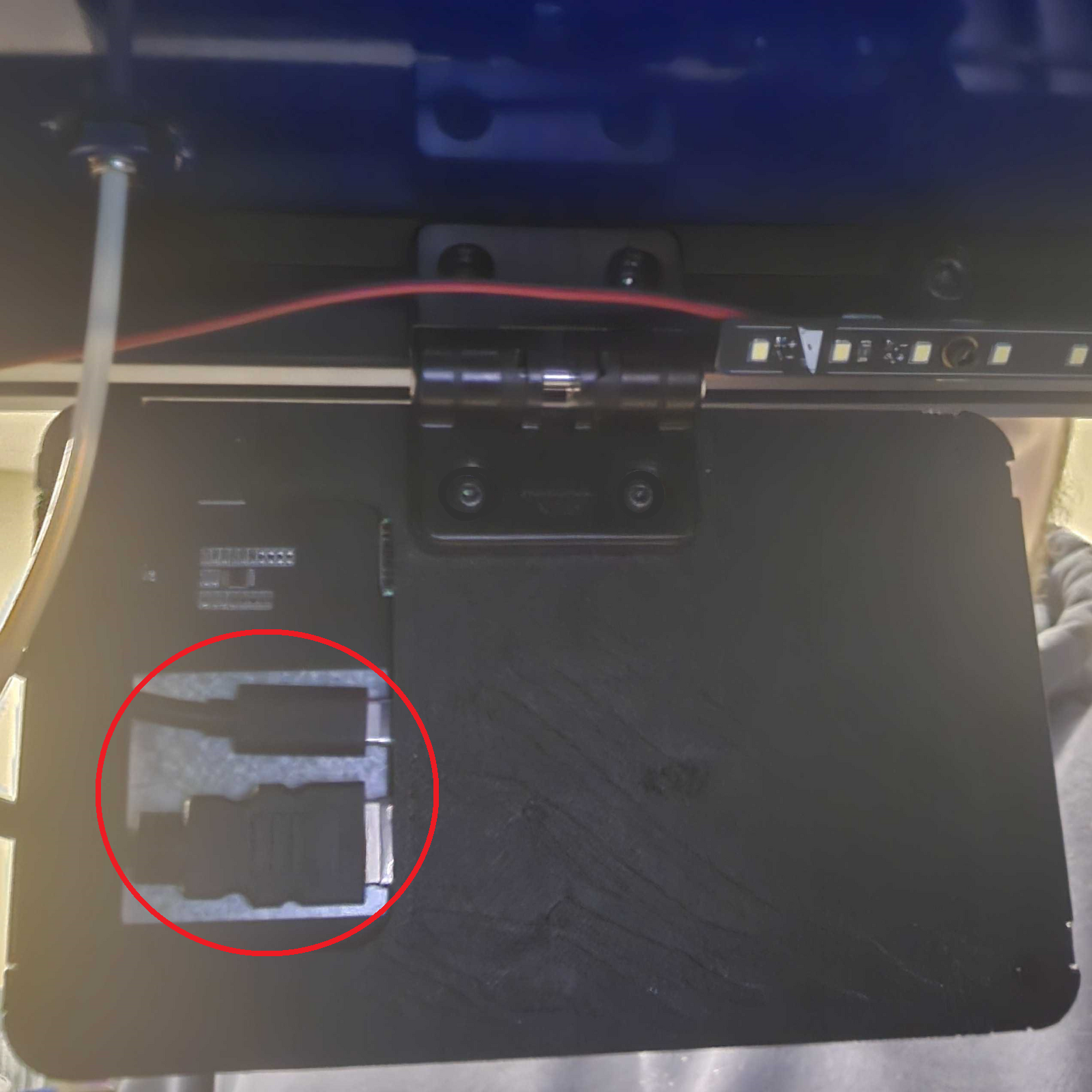
Step 3: Check LCD Connections
1. Unplug the Power to the Back of the Kiosk.
2. Unplug the HDMI and USB-C Cables from the Back of the LCD Screen
3. Plug the LCD Screen into the HDMI and USB-C cables from Step 1: Quick Restart
4. Plug the Power Back in. If the problem persists, let the Protosthetics Support Team know through the Chat Feature.