Table of Contents
- Sizing Guidelines
- Print a Galileo Guard
- Post-Processing Requirements
Sizing Guidelines
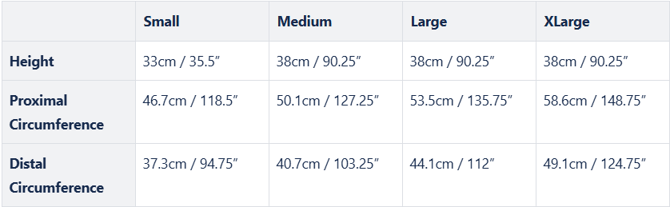
Galileo Guards come in sizes S - XL. See the following chart for sizing specifications.
Print a Galileo Guard on Your Galileo Printer
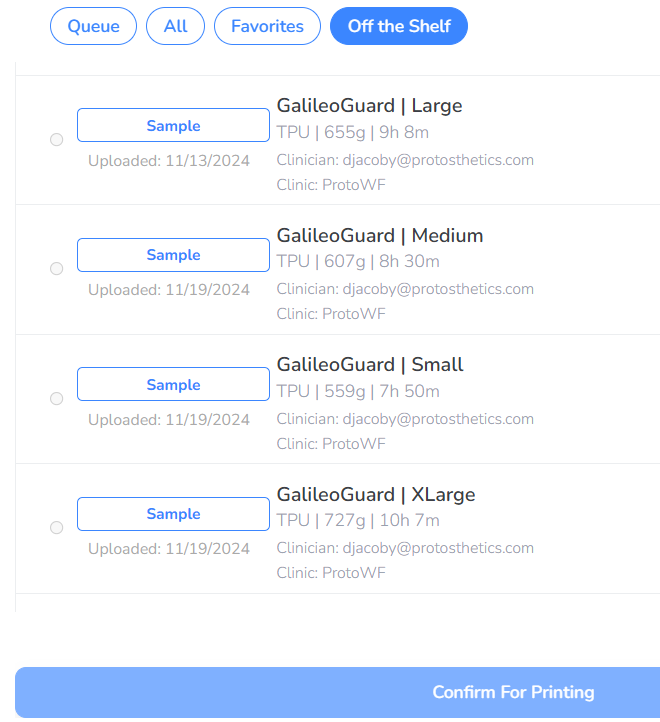
- Log into FabOne and navigate to Galileo > Print Control. Then, click on the "Off-The-Shelf" section to see your ready-to-go print options.
- Click on your desired Galileo Guard size, and click "Confirm for Printing" to start the print.
Note: Be sure you have loaded the Cheetah TPU filament. No other filament will work with these files.
Post-Processing Requirements
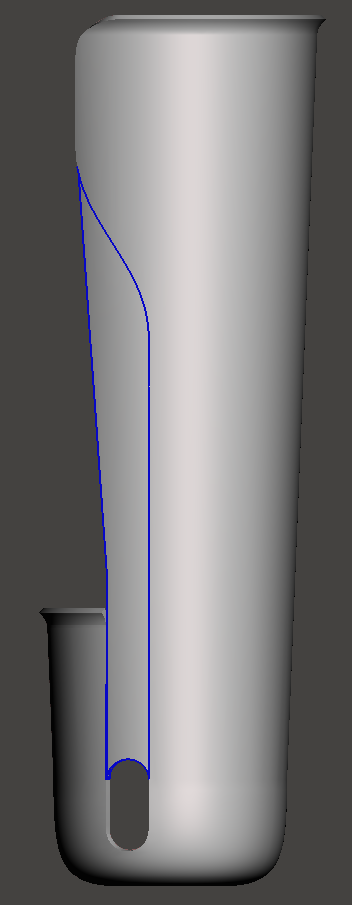
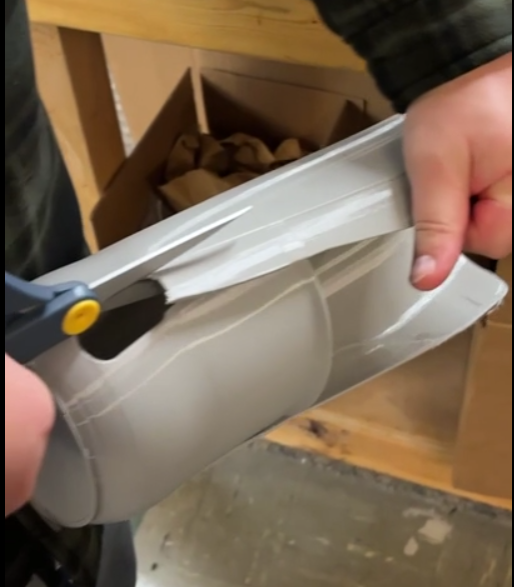
The guard prints with a section that needs to be removed after printing. See the section outlined in blue below. It will be printed as a depressed area, so you will clearly see where to cut with scissors.
Note: You can use any material you'd like for the straps (velcro, dacron, etc.). Play around with what works best!