Check the Ethernet lights
- Unscrew and remove the blue panel behind the kiosk to see the electronics inside.
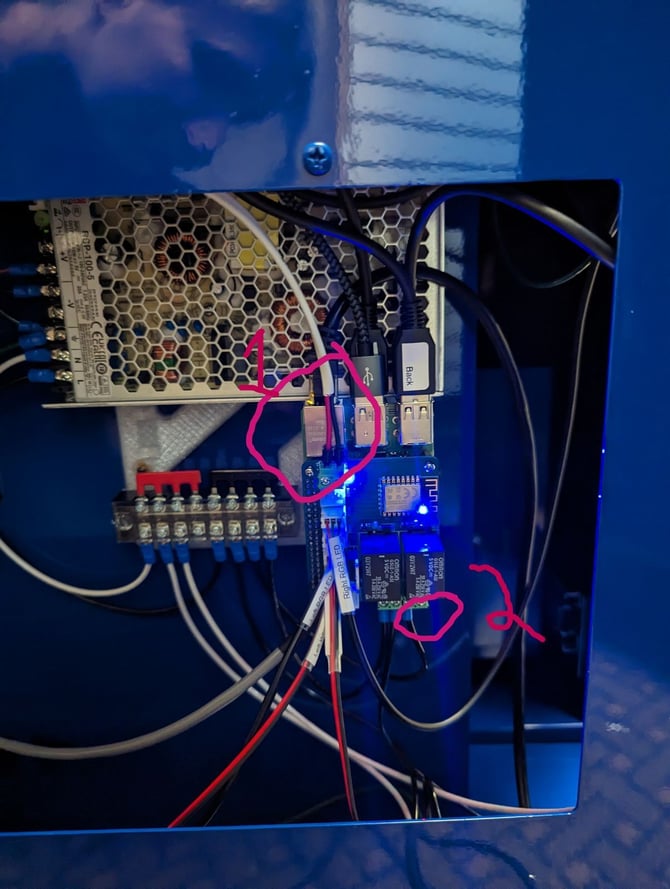
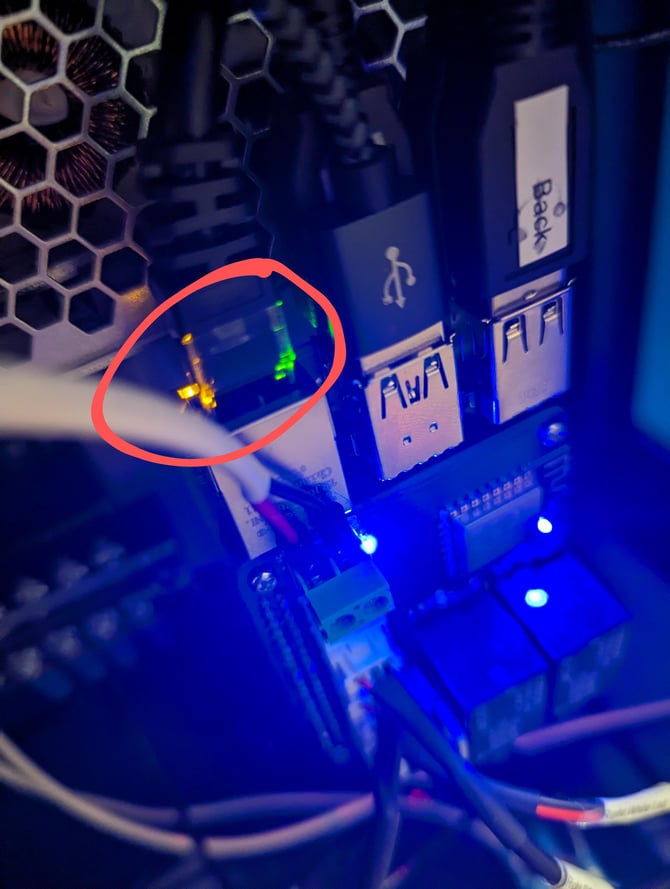
- At the top of the electronics box, you’ll see a green and yellow light as displayed in image 1. These indicate that the printer is establishing an Ethernet connection, and it is normal for them to blink.
Note: If you don’t see both a green and a yellow light, the Ethernet isn’t working.
Check the SD card lights
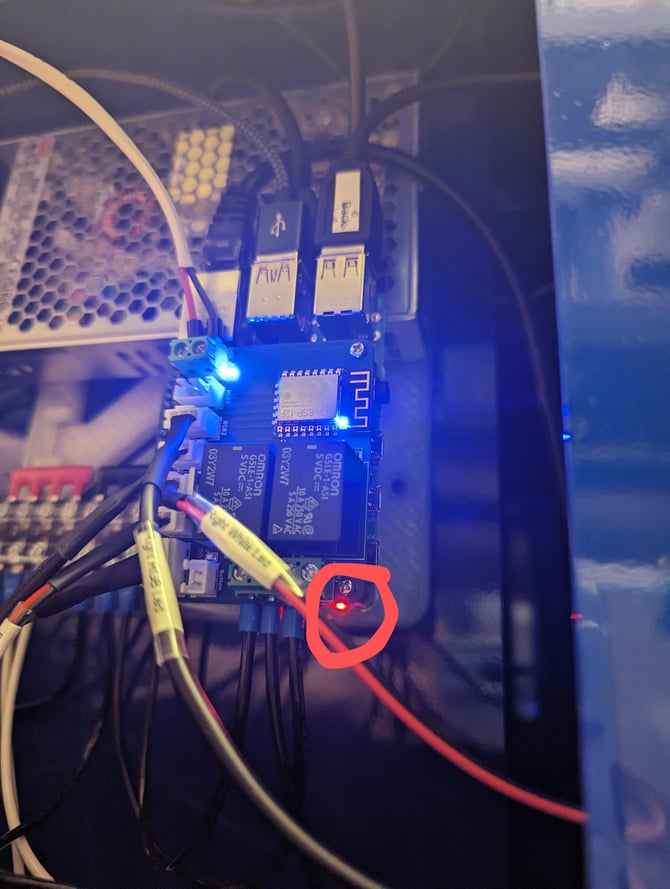
- At the bottom of the box, you’ll see a red light. Get right below it so you can see it clearly from beneath. Next to that red light should be a blinking green light. You may have to watch that area for 20 seconds to see if you notice the green light blink because it is intermittent.
Note: If there is a solid green light - or no green light at all - you’ll need a new SD card.